
AetherNightmare
New Member
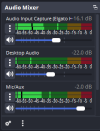
Recently I've experienced extremely low game volumes when attempting to capture audio with my Elgato HD60 capture card in OBS. My settings remain unchanged from previous streams, and the sound bar shows audio being output at a proper volume bar range (between -25-30), but in the actual streams and recordings, the volume is much lower (if I had to estimate, I'd say it sounds like -50 easily). To get even slightly reasonable levels, I'd now need to set the game capture volume to 0.0dB.
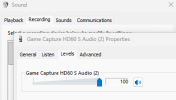
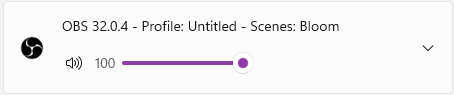
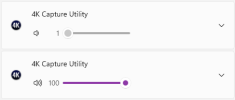
Meanwhile, volume recorded as a test in 4K Capture is still at proper levels. Both OBS and 4K capture are also updated to their most recent versions. I've attempted to disconnect the capture card, but the issue persists. And volume levels for both programs in windows are at 100% (please note they are not both open at the same time, I'm just pointing out both to troubleshoot).
I am using audio input capture for recording game sound, but the issue persists even if using the audio directly from the video capture instead.
When recording from a different application like Streamlabs (even though I prefer base OBS), I do not have said low audio issues.
The microphone in all of these scenarios works fine and has needed no adjustments.
Any help towards getting this issue resolved would be much appreciated.
Log File: https://obsproject.com/logs/BG9WsAWBOsa0hP4H
Meanwhile, volume recorded as a test in 4K Capture is still at proper levels. Both OBS and 4K capture are also updated to their most recent versions. I've attempted to disconnect the capture card, but the issue persists. And volume levels for both programs in windows are at 100% (please note they are not both open at the same time, I'm just pointing out both to troubleshoot).
I am using audio input capture for recording game sound, but the issue persists even if using the audio directly from the video capture instead.
When recording from a different application like Streamlabs (even though I prefer base OBS), I do not have said low audio issues.
The microphone in all of these scenarios works fine and has needed no adjustments.
Any help towards getting this issue resolved would be much appreciated.
Log File: https://obsproject.com/logs/BG9WsAWBOsa0hP4H